How do I create a Designer QR Code in my account?
- How to create a designer QR Code in your account
- 1. Log into your account
- 2. Click on Design QR from the QR Code options menu
- 3. QR Code design templates
- 4. Choose your QR Code's colors and background
- 5. Select design patterns for your QR Code
- 6. Select your QR Code's frame and set a label
- 7. Choose or upload your QR Code's logo
- 8. Use an image as your QR Code's background
- 9. Set your QR Code's size and ECL
- 10. Download your QR Code
- Saving your custom templates
- Optional template attributes
- Template Markers
- Deleting a template
- Overwriting an existing template
How to create a designer QR Code in your account
1. Log into your account
Please log into your account on our QR Platform.
Login
2. Click on Design QR from the QR Code options menu
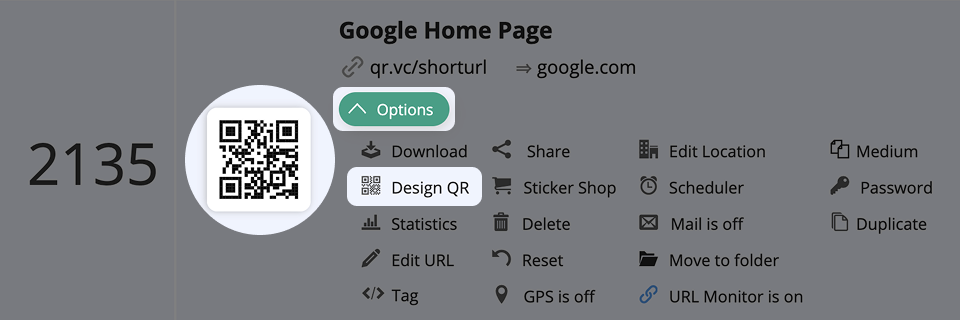
Time to take a closer look at the different options in our QR Code Designer, like templates, colors, logo, and more.
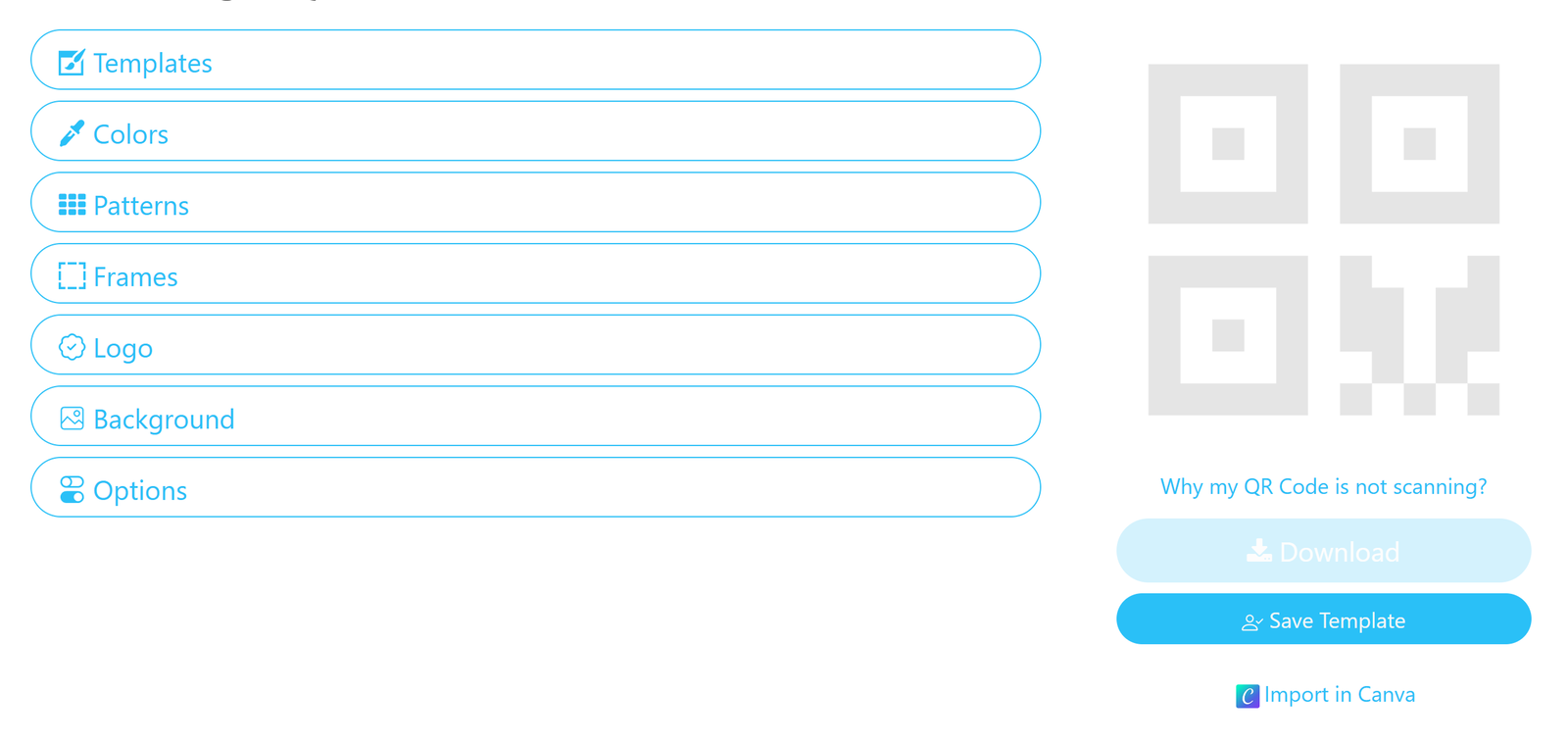
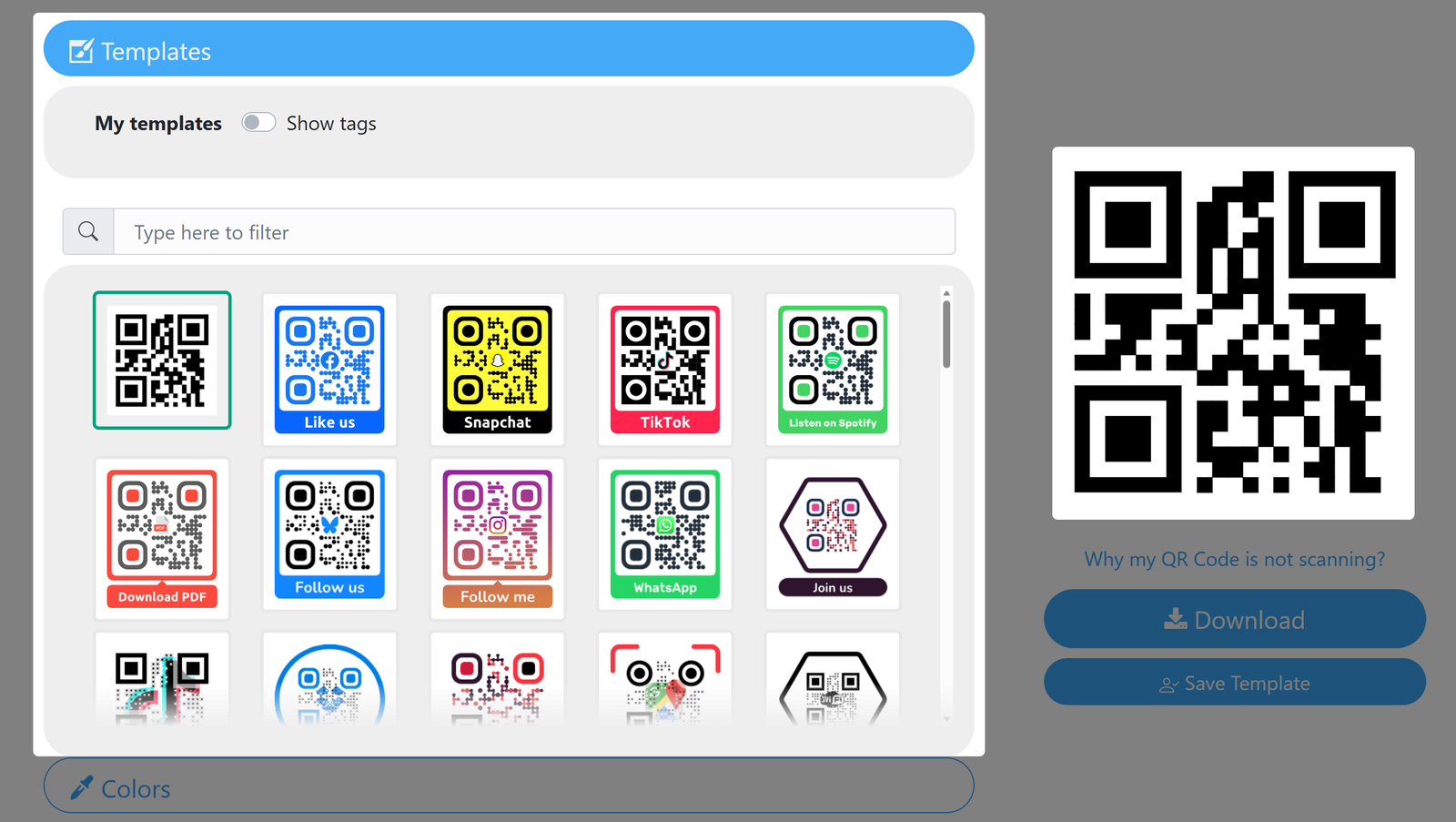
3. QR Code design templates
Choose between pre-made templates and your saved custom designs for your QR Code. Learn more about working with templates.
If you have no template ready and want to create a new design, continue with this article.
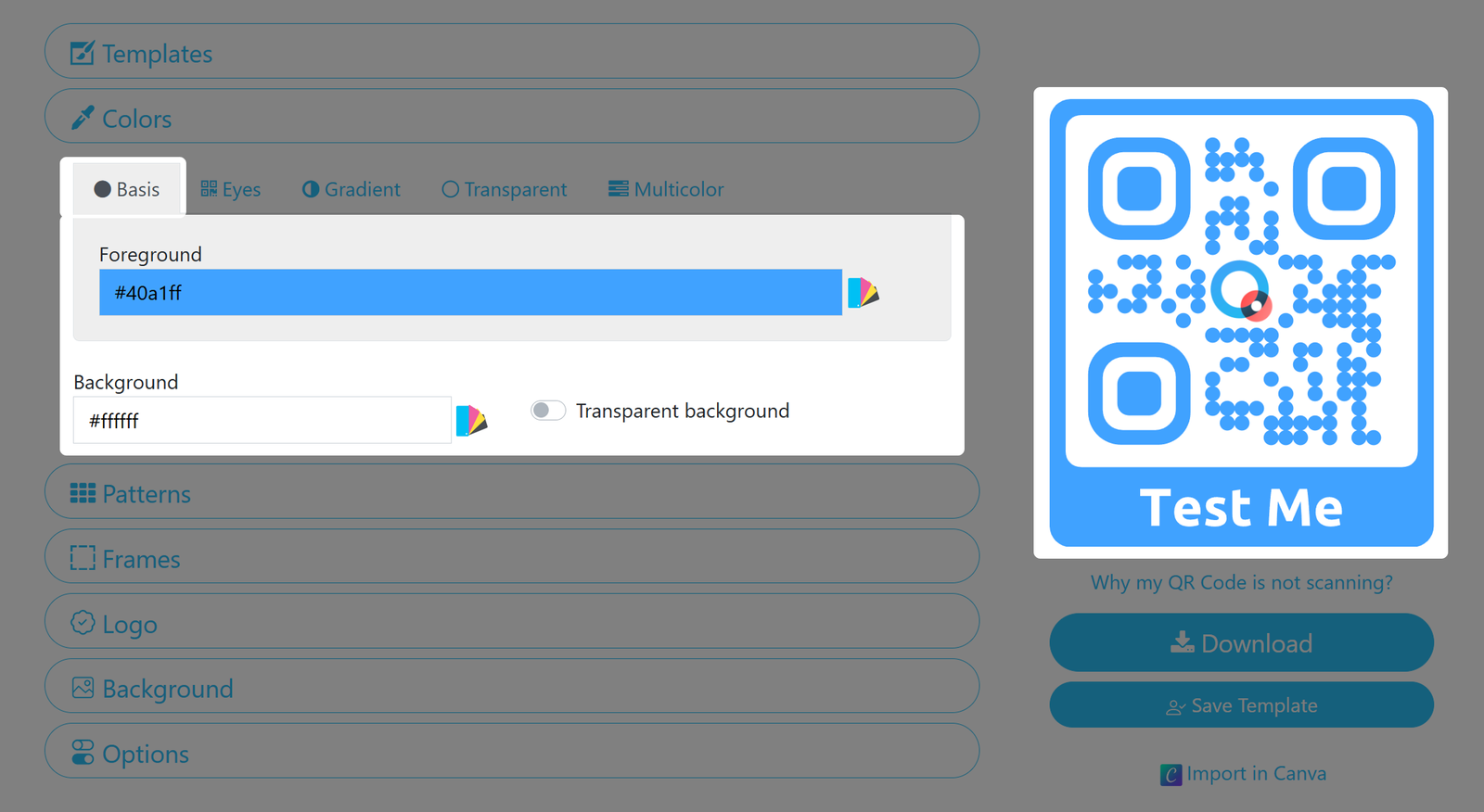
4. Choose your QR Code's colors and background
Please keep in mind to always use colors with at least a moderate contrast to one another and to the background. If contrast is too low it may impede the scanning process.
Basis
Choose a base color to be applied to all QR Code elements.
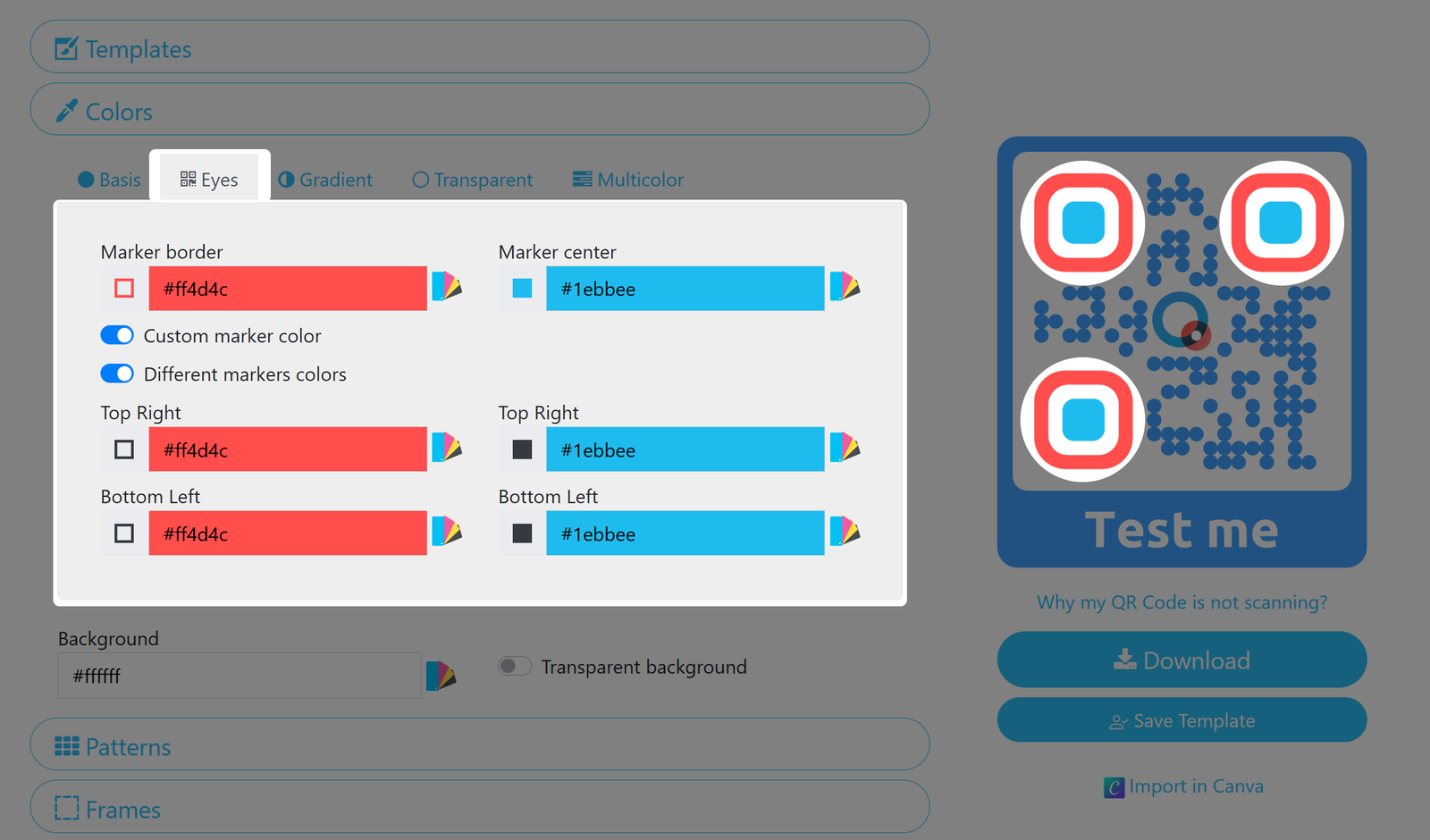
Eyes
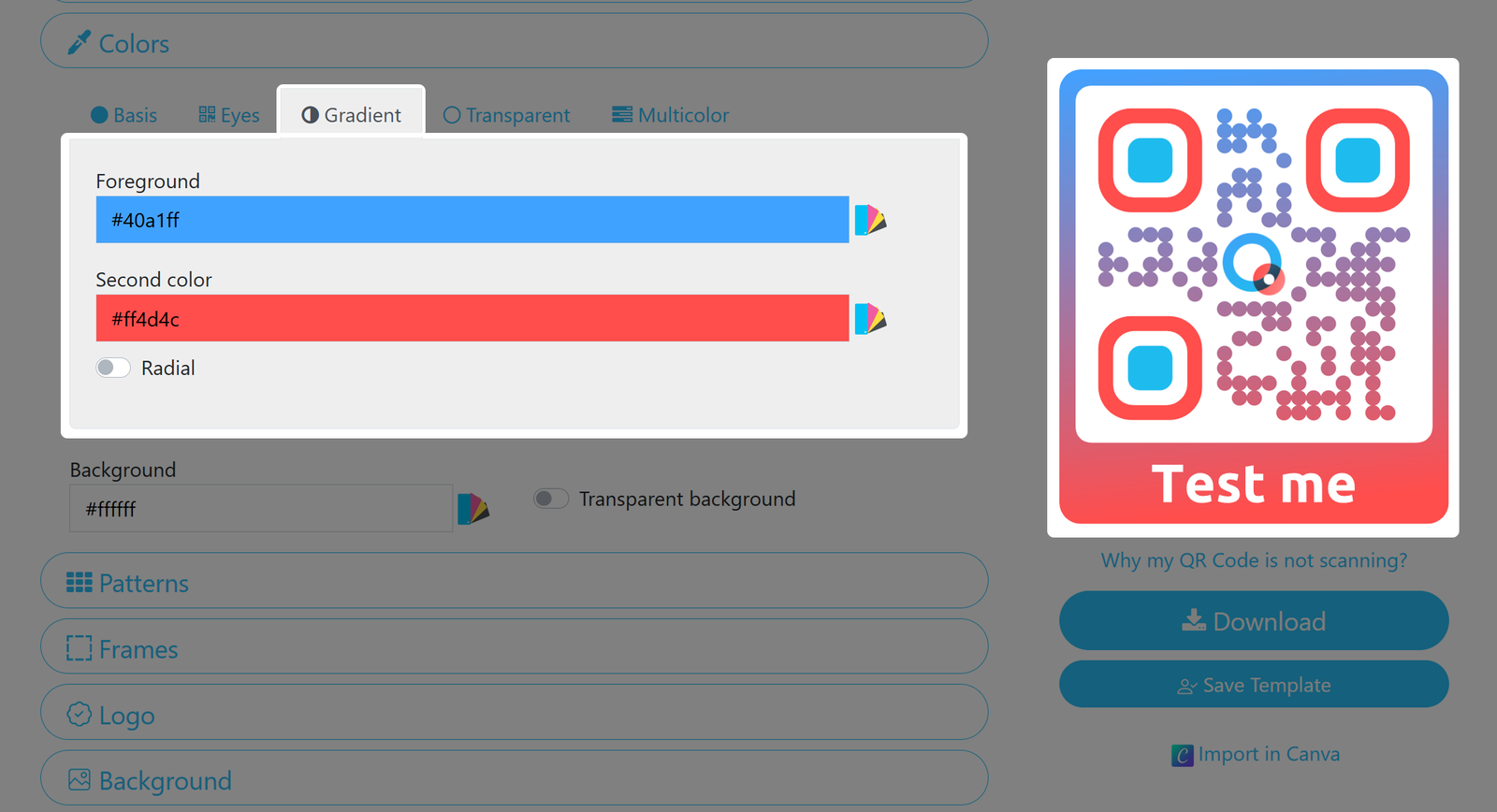
Gradient
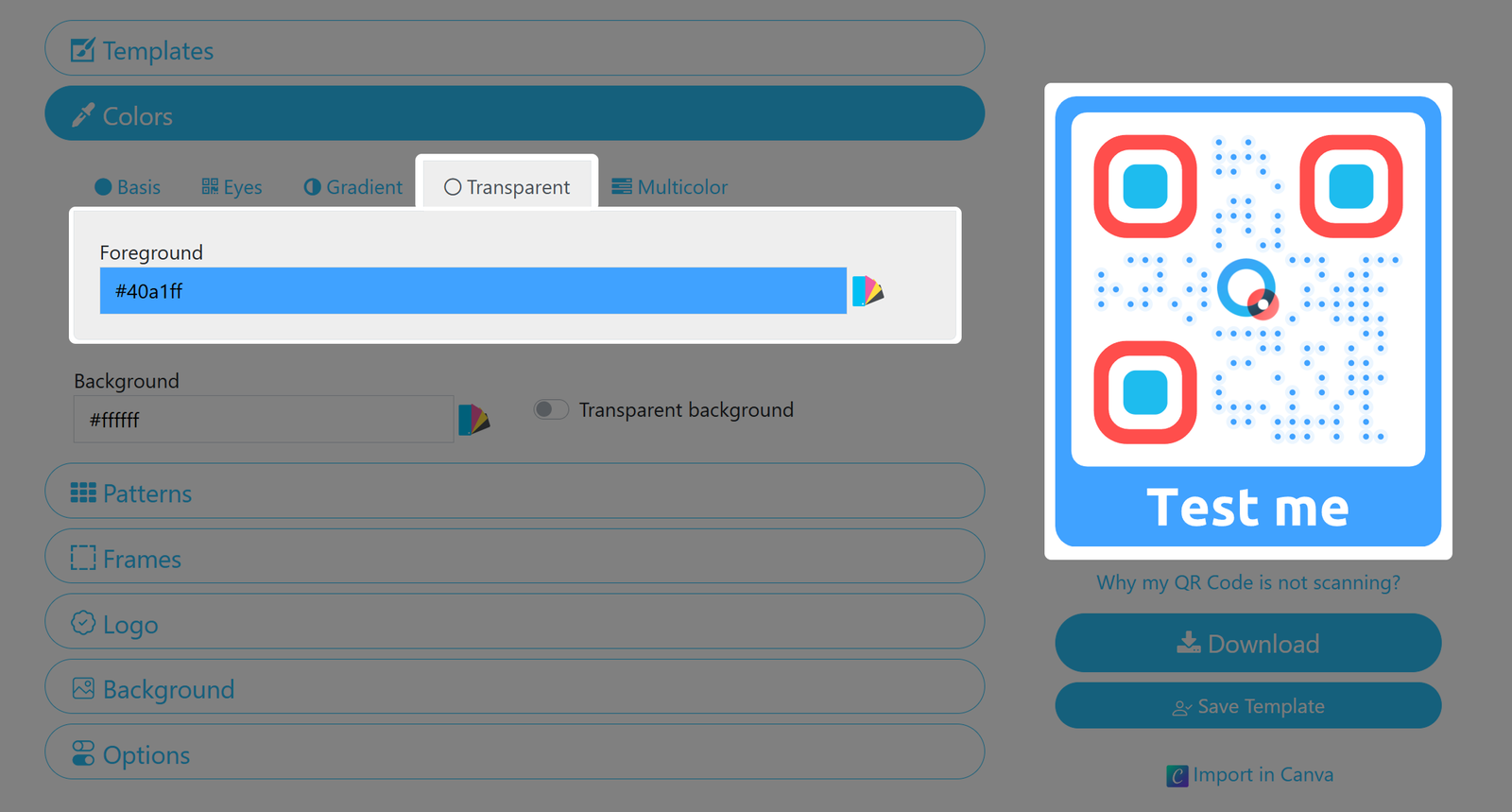
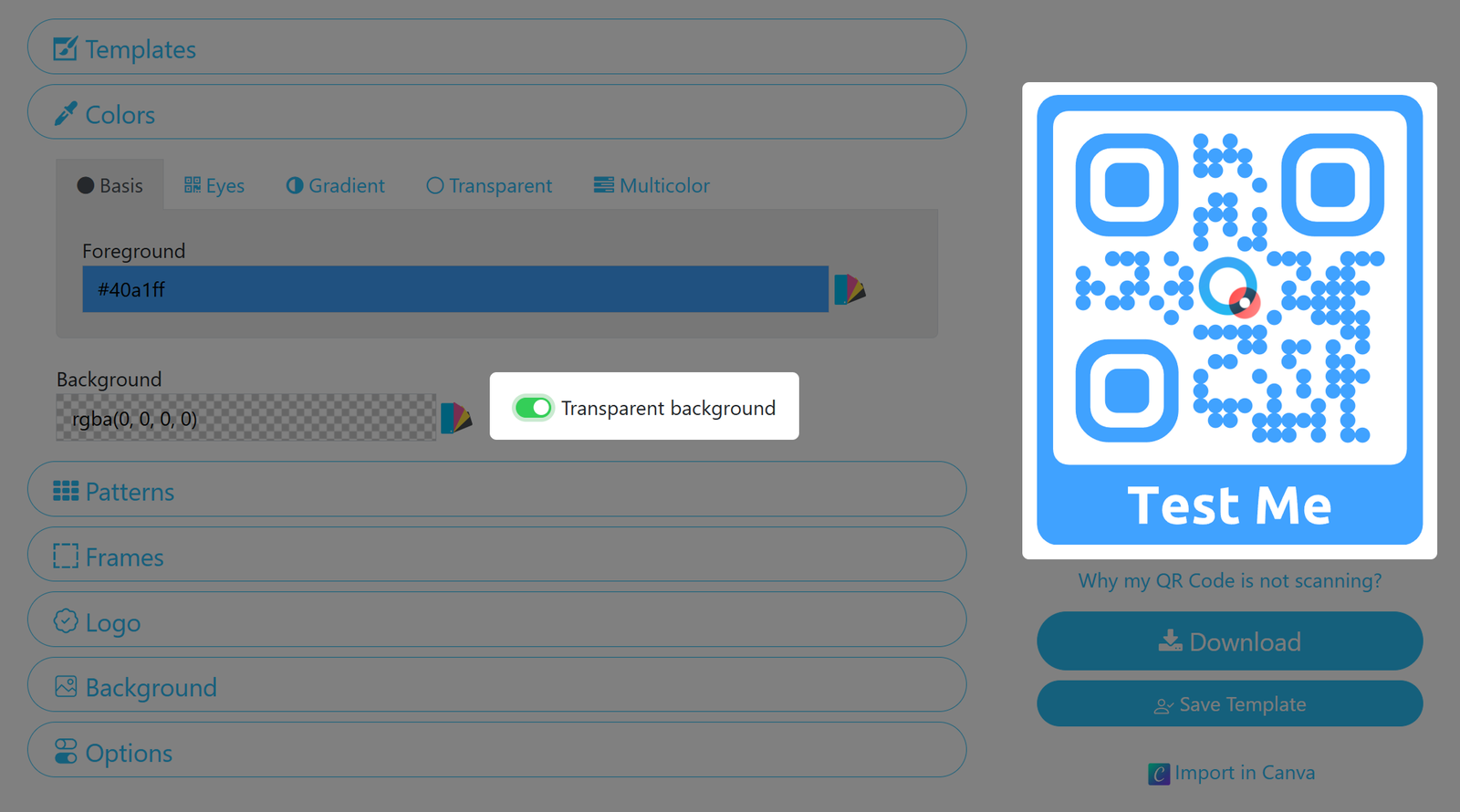
Transparent
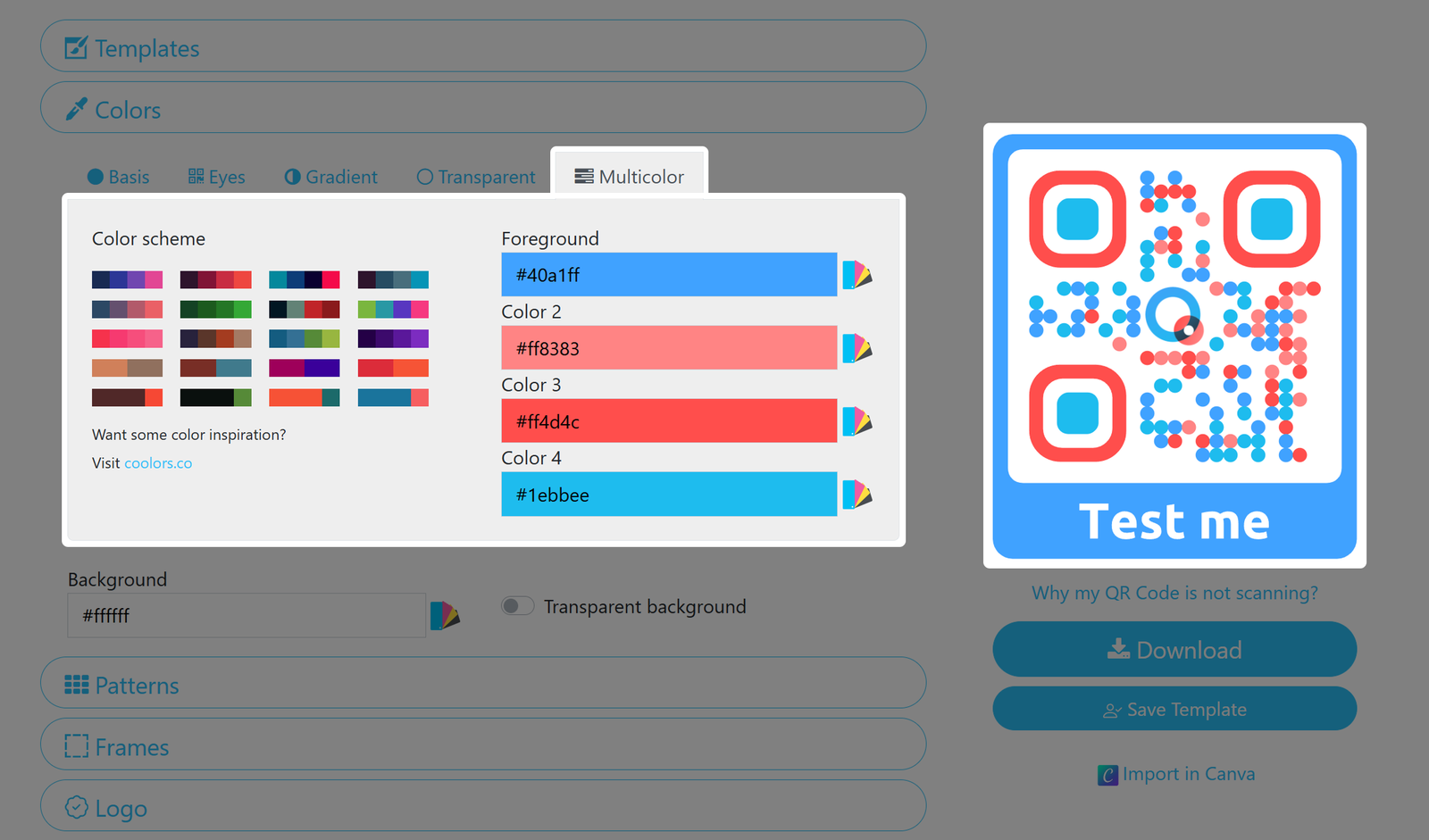
Multicolor
Background
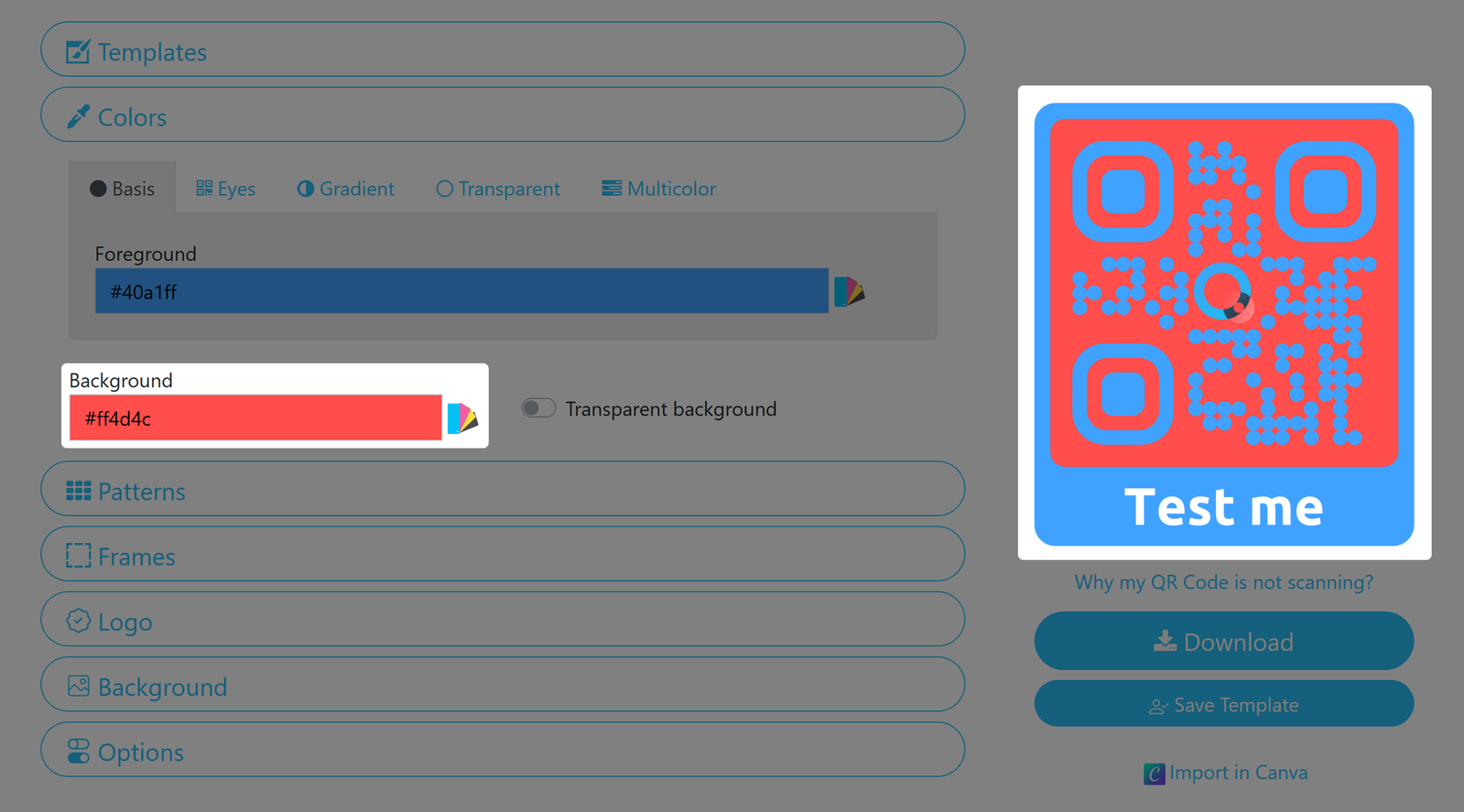
If you want to print the Code on a medium with the same color as the code, also use the Transparent tab!
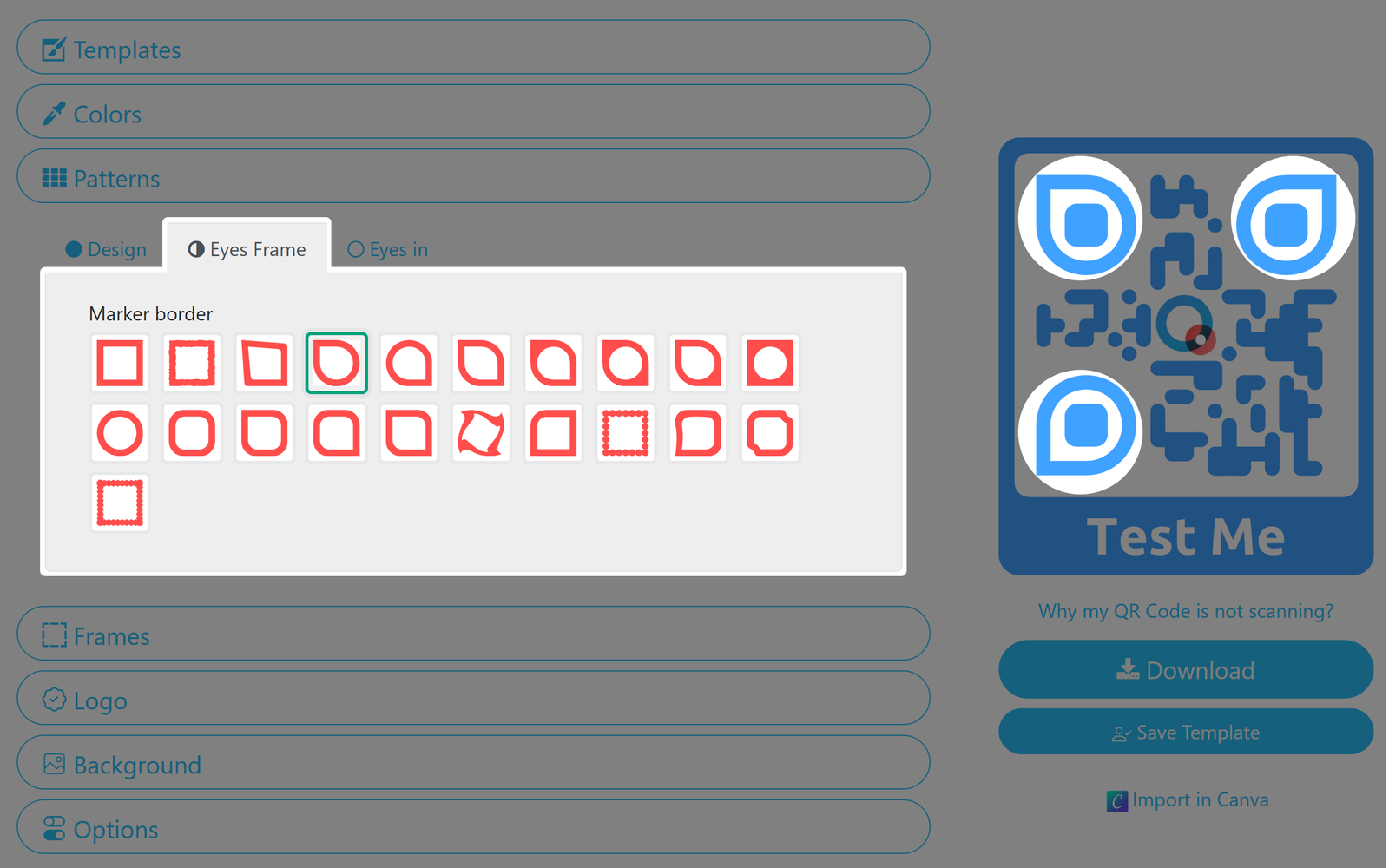
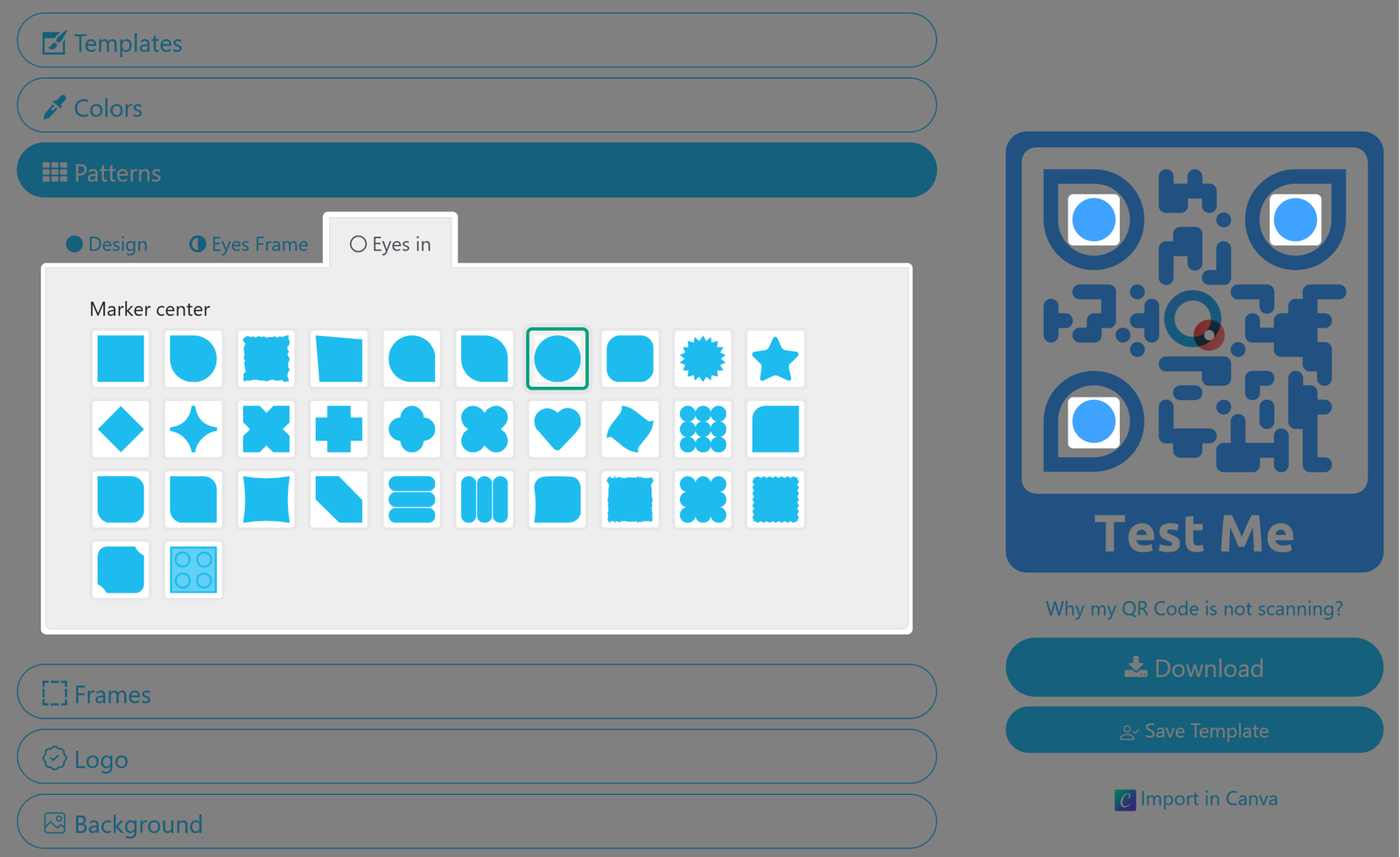
5. Select design patterns for your QR Code
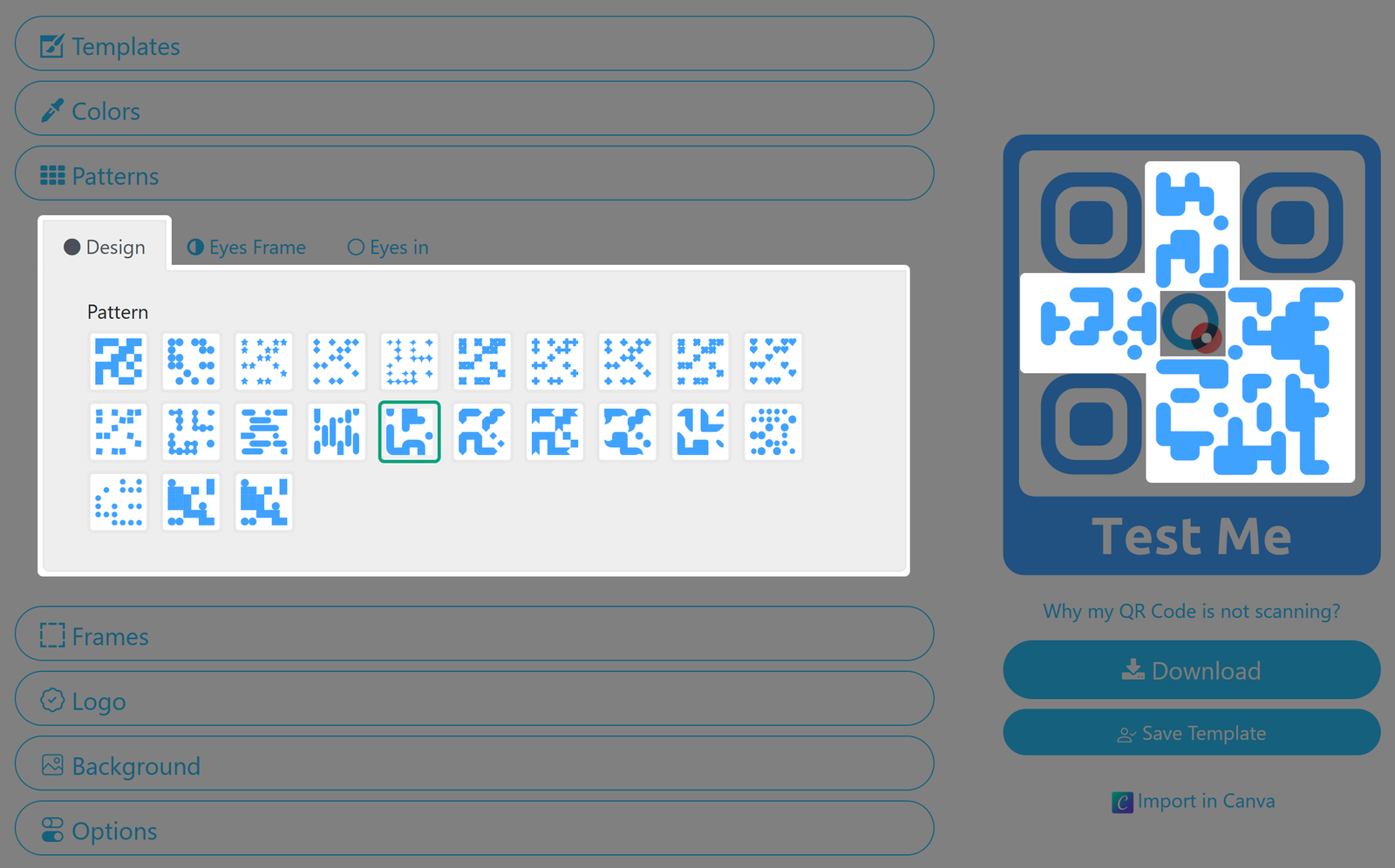
The markers are important, as they indicate the correct orientation of the QR Code.
6. Select your QR Code's frame and set a label
Choose between frames with or without labels and define a separate frame color. You can also set the text size, font, and color of your label.
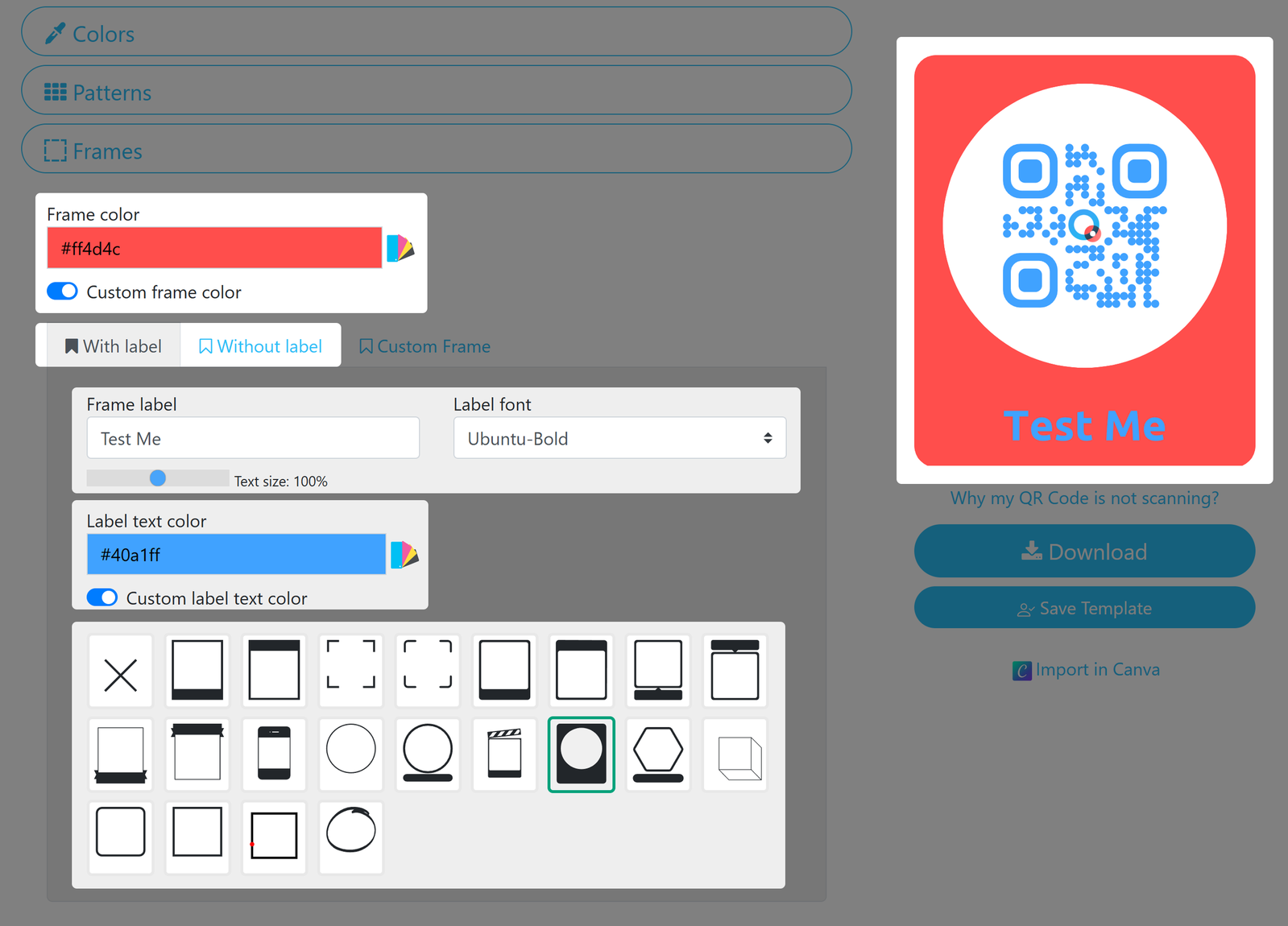
Custom Frames are only available for our Enterprise customers. Contact us if you want to learn more.
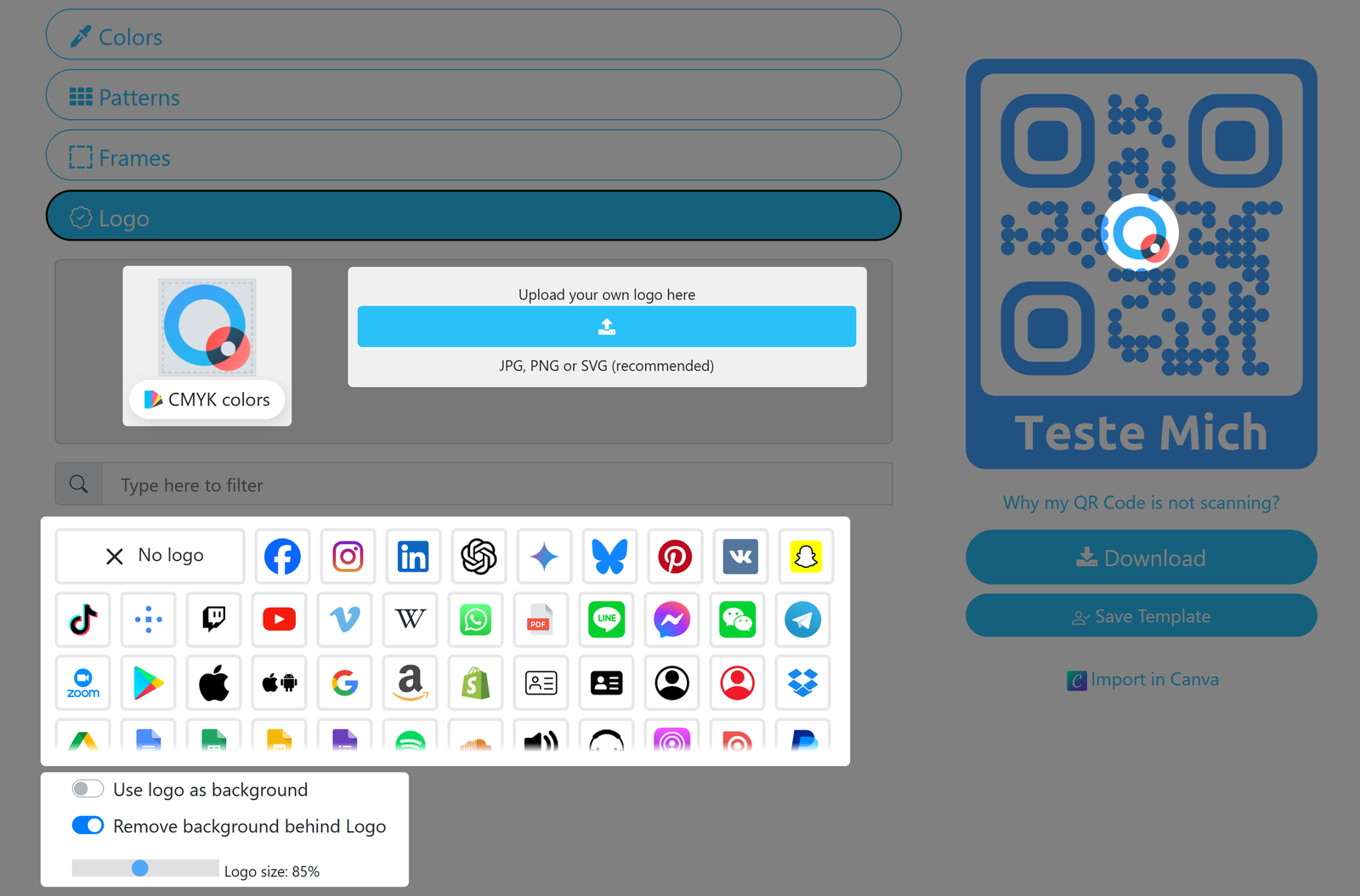
7. Choose or upload your QR Code's logo
You can also set your logo as the QR Code's background (see below).
8. Use an image as your QR Code's background
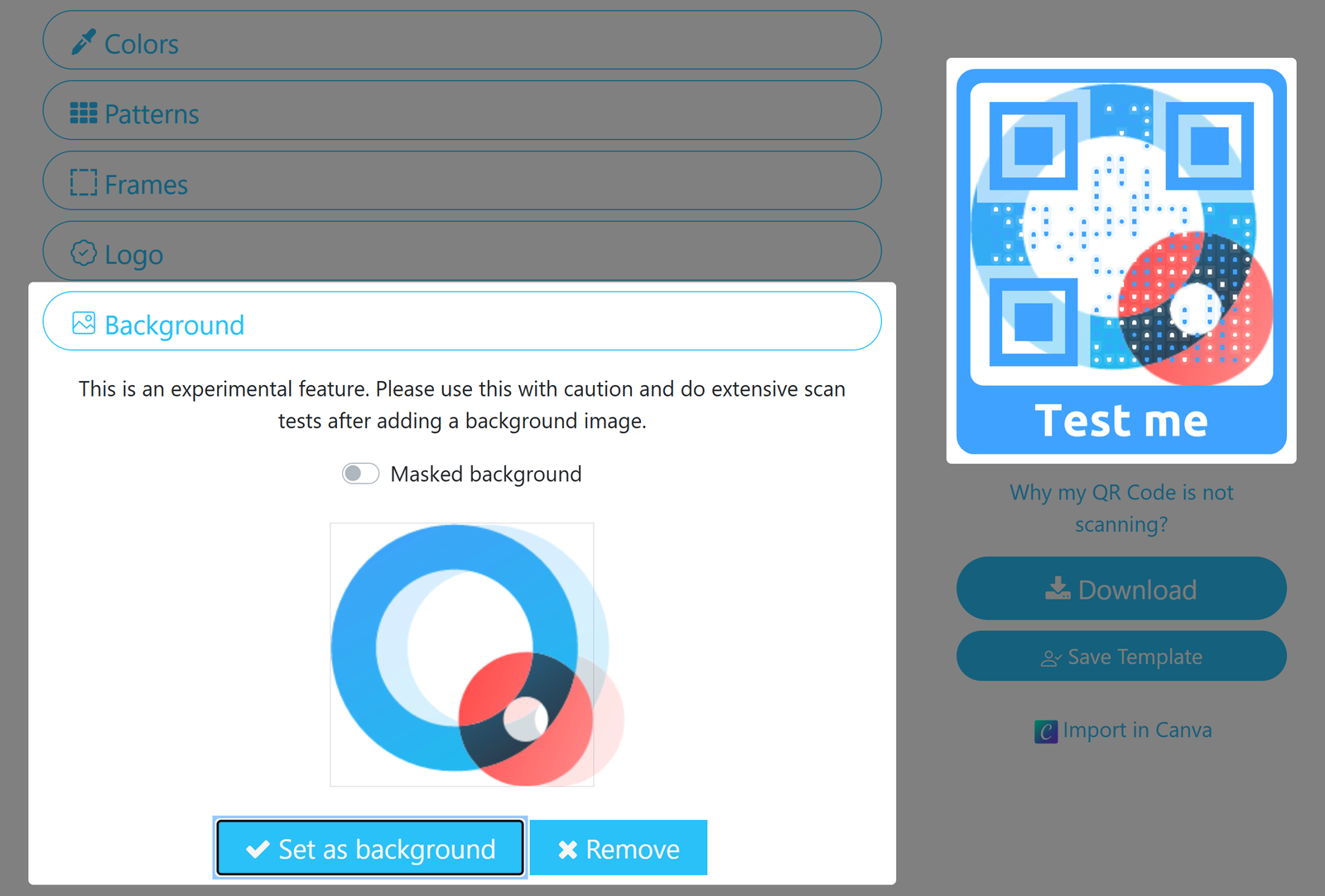
You can upload an image and set it as your QR Code's background.
Please be aware that this is an experimental feature. When using it, please make sure to also activate Transparent in the Colors Pane, and always test your QR Code - especially before printing in high volumes!
9. Set your QR Code's size and ECL
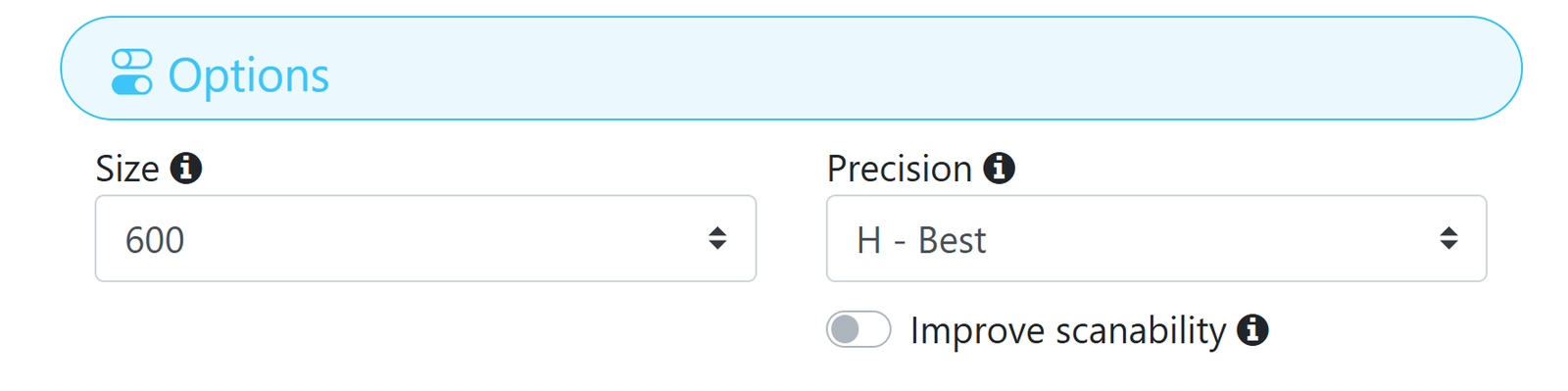
Via the options pane you can choose your QR Code's Size and Precision (also known as Error Correction Level). The standard settings of 600 and H - Best are recommended, but the optimal values variy depending on the type of design you are creating.
The size parameter only affects downloaded QR Codes in PNG format. Vector formats do not have a fixed size since the can be scaled to any size.
In case your QR Code does not properly scan, try the Improve scanability setting and retest the Code.
10. Download your QR Code
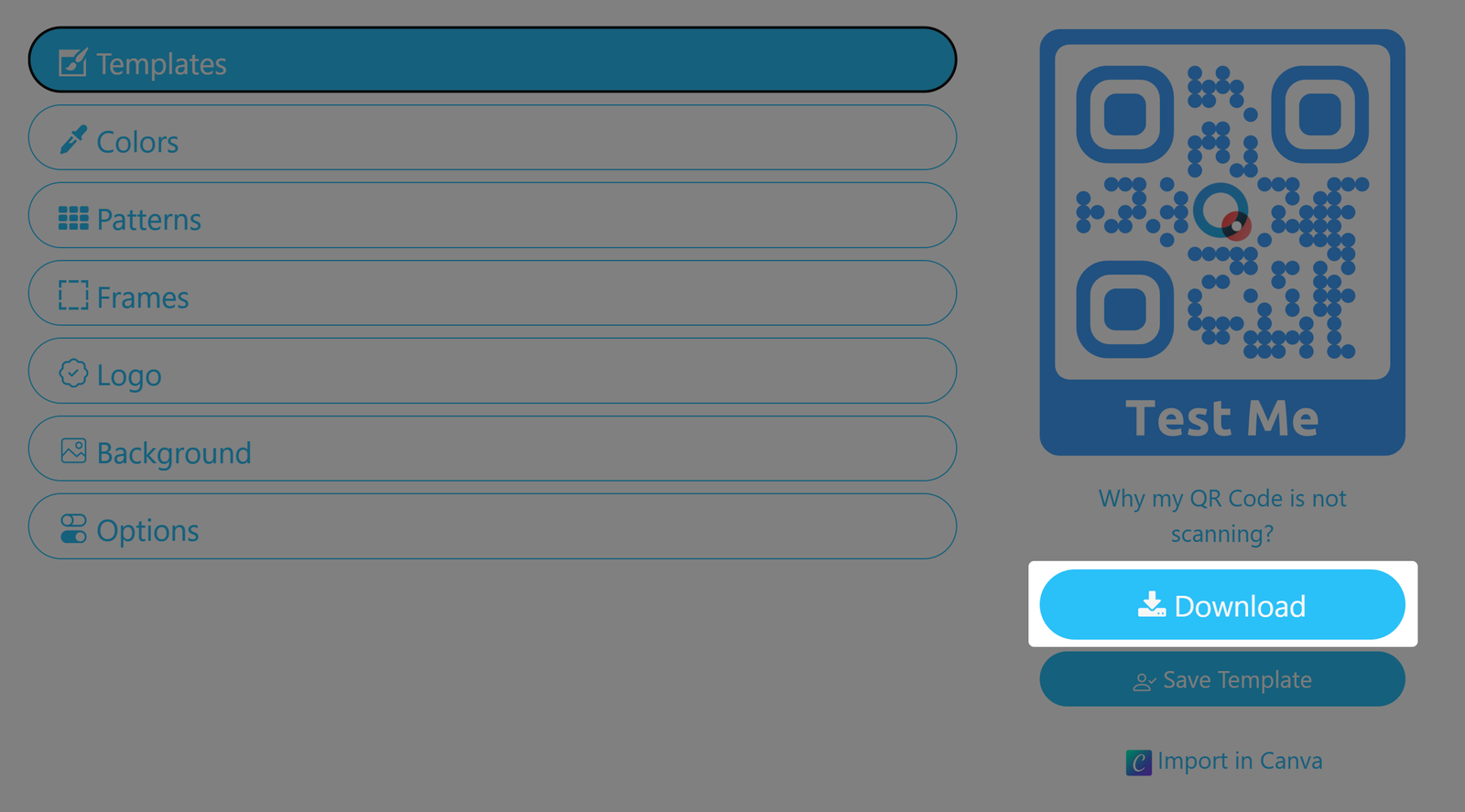
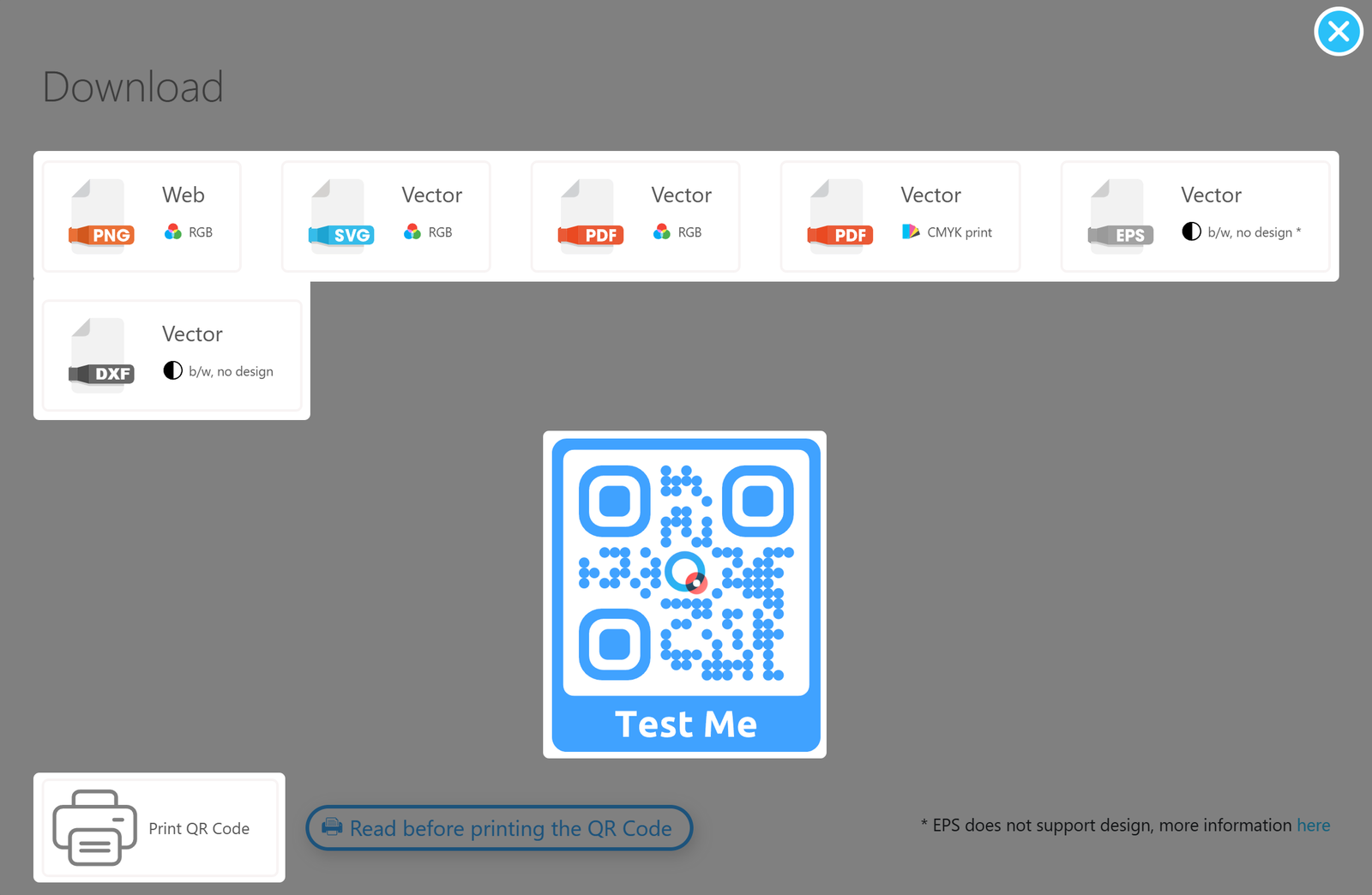
You can download your designed QR Code as PNG, SVG or PDF, and without designs as EPS or DXF; this will mainly depend on whether you want to print your Code or use it in digital media.
Working with templates
Saving your custom templates
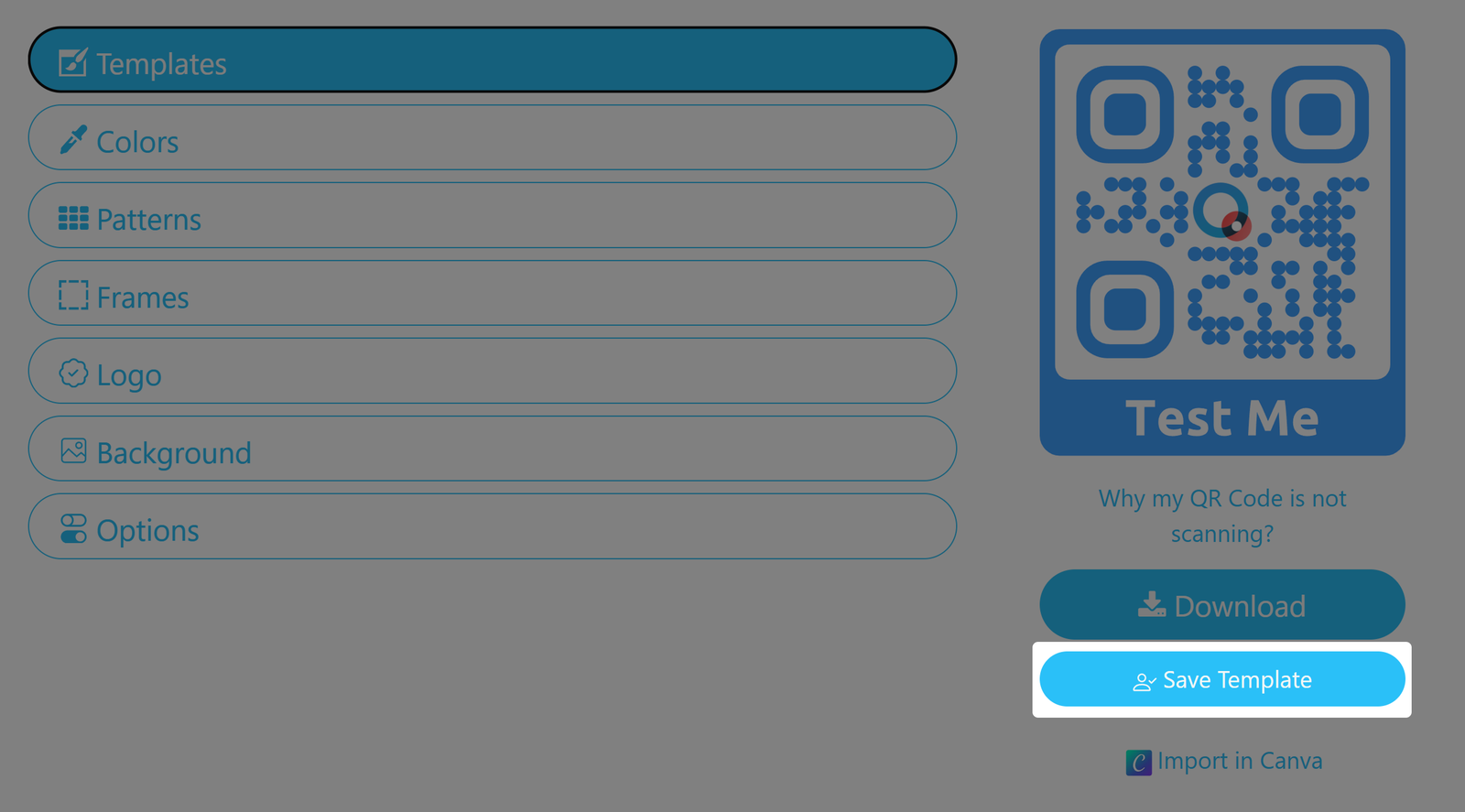
Optional template attributes
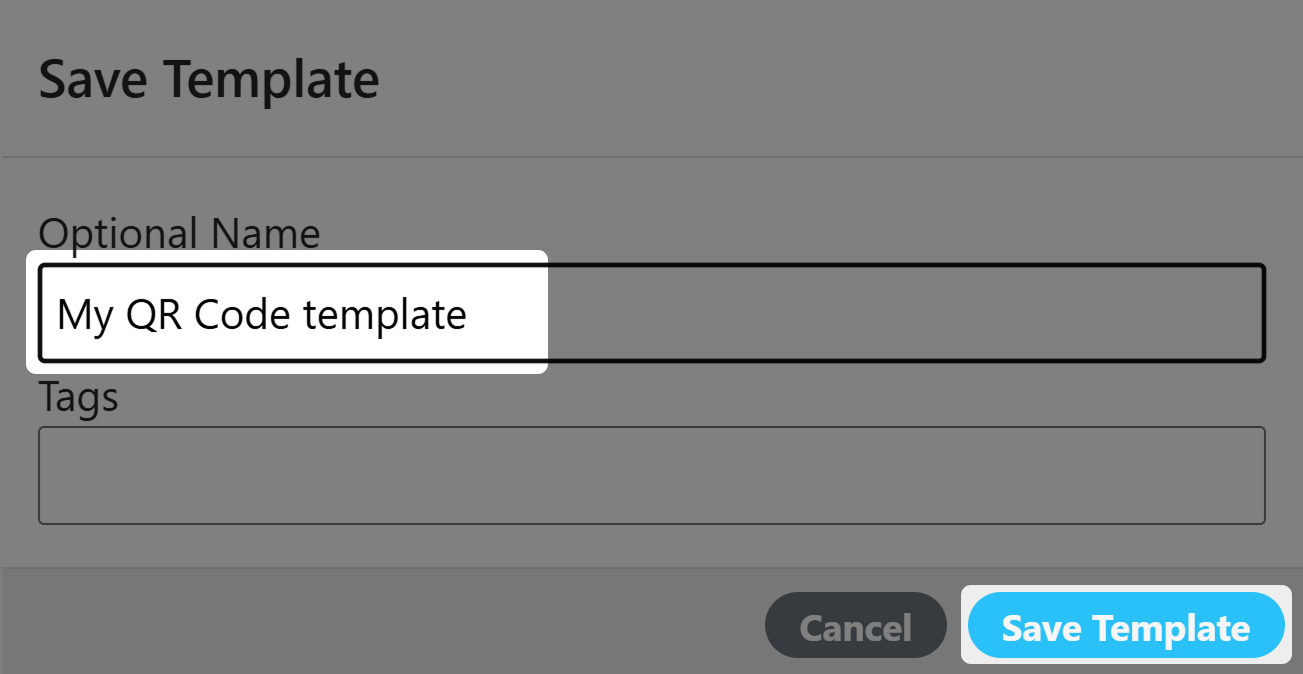
Template Markers
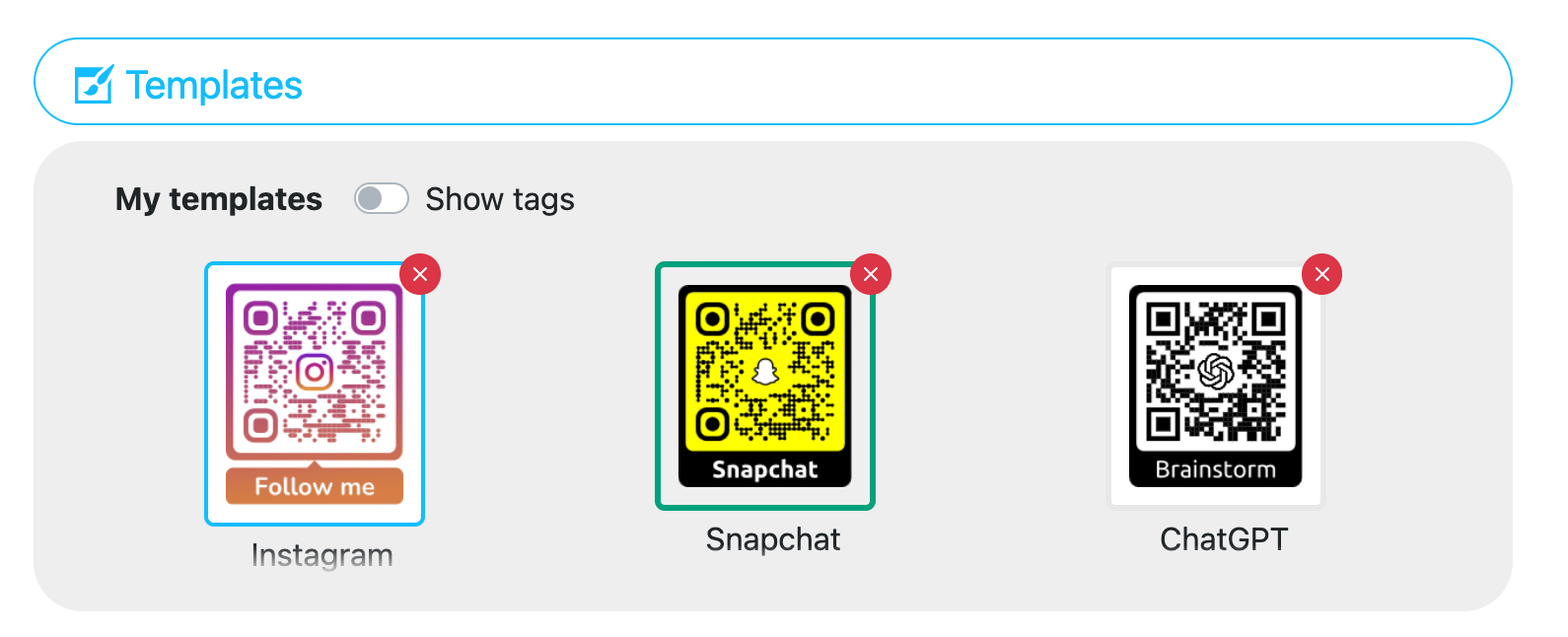
Deleting a template
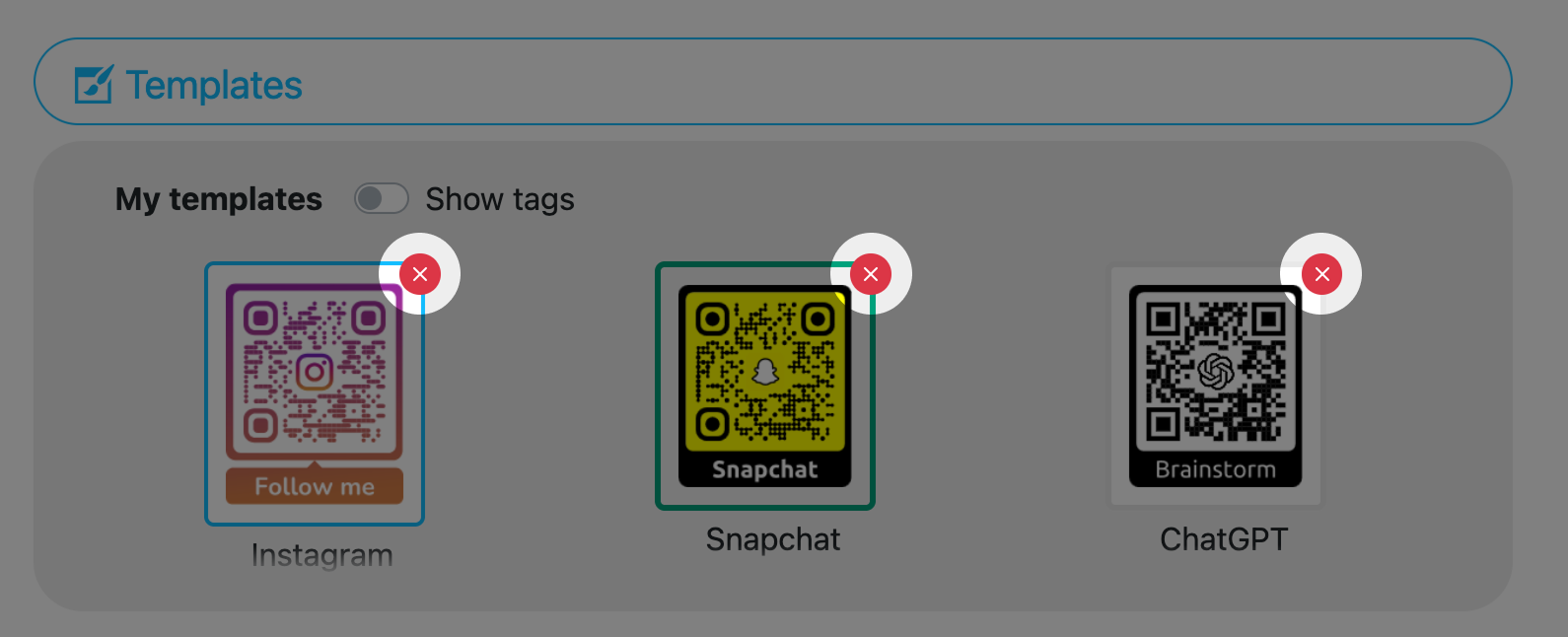
Overwriting an existing template
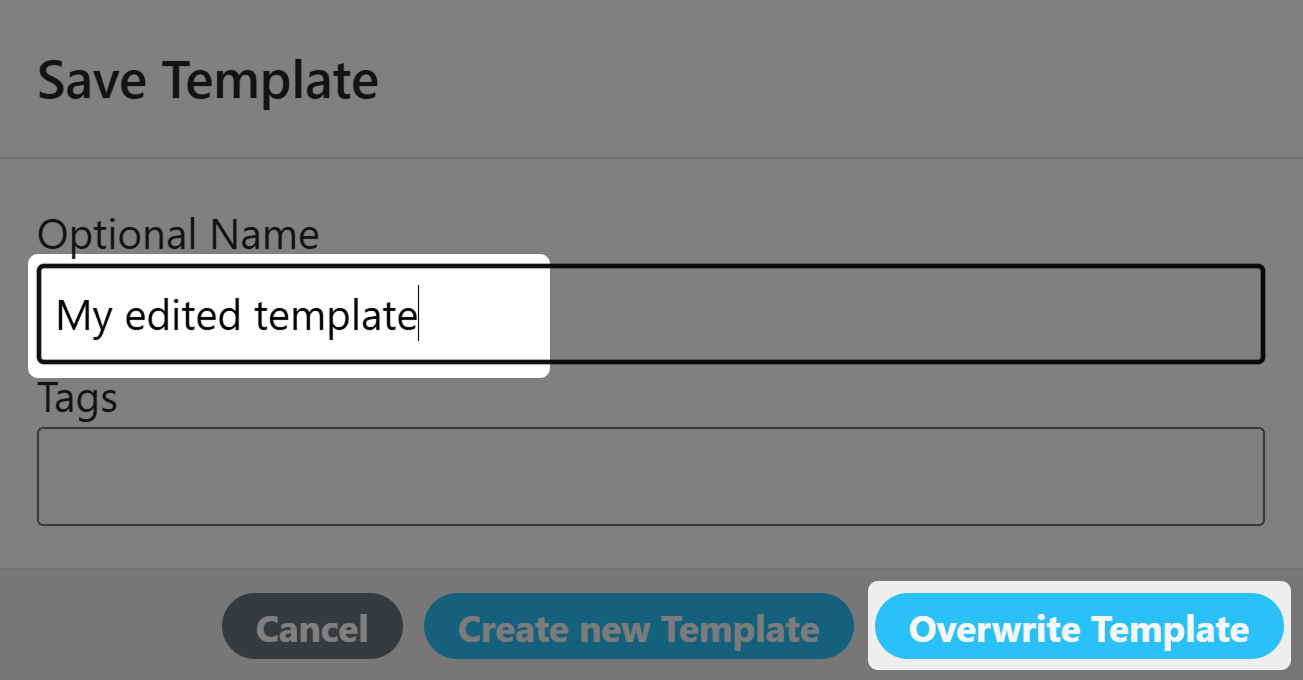
Designer Limitations
Output
Depending on the selected file format and features used in a Designer QR Code the following matrix explains if the output is pure vector or combined vector with raster graphics.
| SVG | EPS (deprecated) | ||
|---|---|---|---|
| With SVG Logo | Pure vector | Pure vector | Pure vector |
| With Gradient | Pure vector | Pure vector | Mixed vector / raster |
Editor / Viewer
Depending on the selected format and features used in a Designer QR Code the following matrix explains which viewers or editors can be used to view and edit the QR Codes.
| SVG | EPS (deprecated) | ||
|---|---|---|---|
| With SVG Logo | Browser only | Browser / Illustrator | Illustrator |
| With Gradient | Browser / Illustrator | Browser / Illustrator | Illustrator |
You may obtain different results depending on your design software version and capabilities.